Duplicates are the number one problem of HubSpot bases that have lived for more than two years. They skew your stats, put two reps on the same prospect, and bill you twice for the same marketing contact. This guide covers the three methods to get rid of them, from the simplest to the most robust, and above all the pitfalls to avoid when merging.
Where do duplicates come from?
Understanding the origin prevents relapse (see also my complete HubSpot database cleaning method). The four classic sources: successive file imports (trade shows, campaigns, bought lists) with no reliable matching key; forms filled by the same person with a different email each time (work then personal); manual entry by reps who do not check what already exists; and third party integrations (billing tool, webinar, enrichment) that create records instead of updating them. Each of these doors can be closed, one by one: that is the subject of the guide on preventing duplicates at the source.
Method 1: the HubSpot duplicate management tool
HubSpot offers a native tool (Contacts, then Actions, then Manage duplicates, depending on your version) that compares records on criteria such as name and email and suggests pairs to review. For each pair, you choose to merge or to ignore.
Its limits in practice: it works pair by pair, which becomes unmanageable beyond a few dozen duplicates; it does not detect email variants of the same person; and it does not tell you which record is the right one to keep (the most recent? the most complete? the one with activity history?).
Method 2: manual detection by export
For an overall view, export your contacts and work in Excel:
- Export all your contacts with the columns: first name, last name, email, phone, company, owner, last activity date.
- Create a matching key column, for example first name + last name + company in lowercase with no spaces.
- Use conditional formatting for "duplicate values" on that key, then sort.
- For each duplicate group, identify the record to keep: favour the one with activity history and an owner, then manually carry over the missing information before merging in HubSpot.
This method is reliable up to around 50 duplicate groups. Beyond that, processing time explodes and so does the risk of human error. What comes next at scale, with written rules and a trace, is described in the guide to bulk deduplication.
The merge pitfalls (read before you click)
- Properties: in a conflict, the values of the record chosen as primary generally win, the copy only filling the blanks; and the record you keep does not always carry the right values (a wrong job title updated by an intern "wins" if it sits on the kept side). The detail is in the guide on what a HubSpot merge keeps.
- Dead duplicates: merging two records inactive for two years does not create a prospect, it creates a clean dead record. First answer "should we keep this contact?", only then "should we merge?".
- Workflows: a merge can change properties that trigger workflows (lifecycle stage, status). Pause the affected workflows during a bulk deduplication, just like before any large HubSpot import.
Method 3: an external audit for large bases
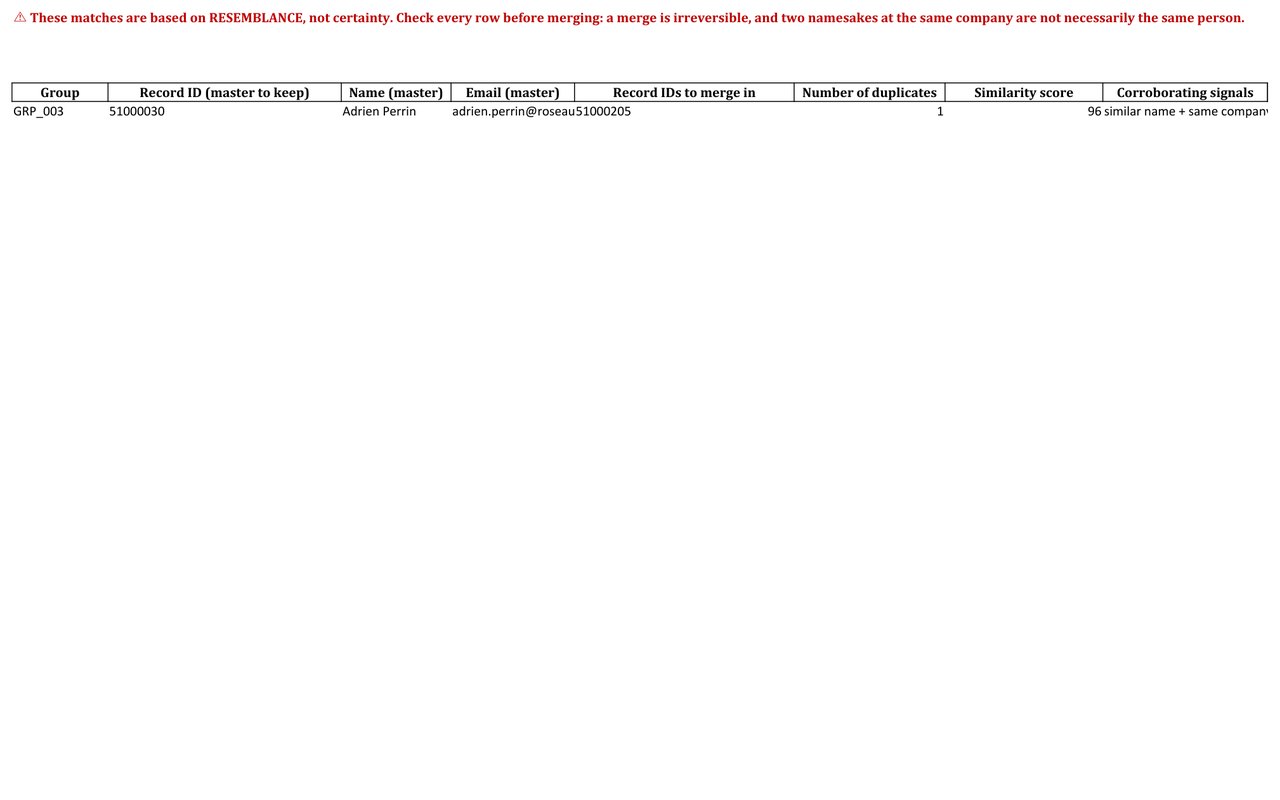
Beyond a few hundred contacts, manual deduplication is no longer reasonable. An automated external audit detects duplicate groups (including on criteria HubSpot does not cross reference), picks the record to keep according to explicit rules (activity, completeness, owner), carries the copies' data into the kept record, and, crucially, traces every decision in a file you validate before reimporting anything.
On the 1,400 contact demonstration base, entirely synthetic: 36 duplicate groups detected, 30 of them actionable and documented record by record so you validate each merge yourself, and 9 fully inactive groups isolated for human arbitration rather than merged blindly.
Sources
Every page below has been opened and read. These are primary sources: the authority that sets the rule, or the software vendor.
- Use data quality toolsHubSpot Knowledge Base. Managing contact and company duplicates. In beta, and subject to your subscription.
- Create and edit propertiesHubSpot Knowledge Base. The properties on which record matching is decided.
- Merge recordsHubSpot Knowledge Base. The conflict rule between primary and secondary records, and the absence of undo.
How many duplicates in your base?
The free mini-audit gives you the exact figure within 24h, from a simple export, with no access to your portal, and without handing your customer file to a third party analysis service.
Get my free mini-audit