Your HubSpot import shows rows in error, or worse: it went through with no error but created duplicates and overwrote good data. This article lists the most common causes, how to fix them, and the checklist so it does not happen again.
The most common errors and their causes
| Symptom | Likely cause | Fix |
|---|---|---|
| Rows rejected "invalid email" | Typos ("gmial.com"), stray spaces, two addresses in one cell | Validate and fix each email before import; blank the unrecoverable values rather than importing junk |
| Unrecognised property value | Dropdown: the file value ("Hot prospect") does not exist in the portal property options | Align the file values with the exact portal options, or create the missing options before import |
| Dates ignored or wrong | Non compliant format (the classic: day/month ambiguity between formats) | Standardise all dates in an unambiguous format accepted by HubSpot before import |
| Truncated or invalid phones | Excel removed the leading 0 or converted to scientific notation; missing country codes | Normalise to international E.164 format and never open the CSV in Excel before import |
| Duplicates created by the import | Import in "create" mode of already existing contacts with an email variant, or no Record ID in update mode | Use the Record ID as the key for updates; deduplicate the file before import |
| Columns not imported | Headers not mapped automatically (column names not matching properties) | Rename the headers with the exact HubSpot property names, or map manually on the import screen |
Create or update: never confuse the two
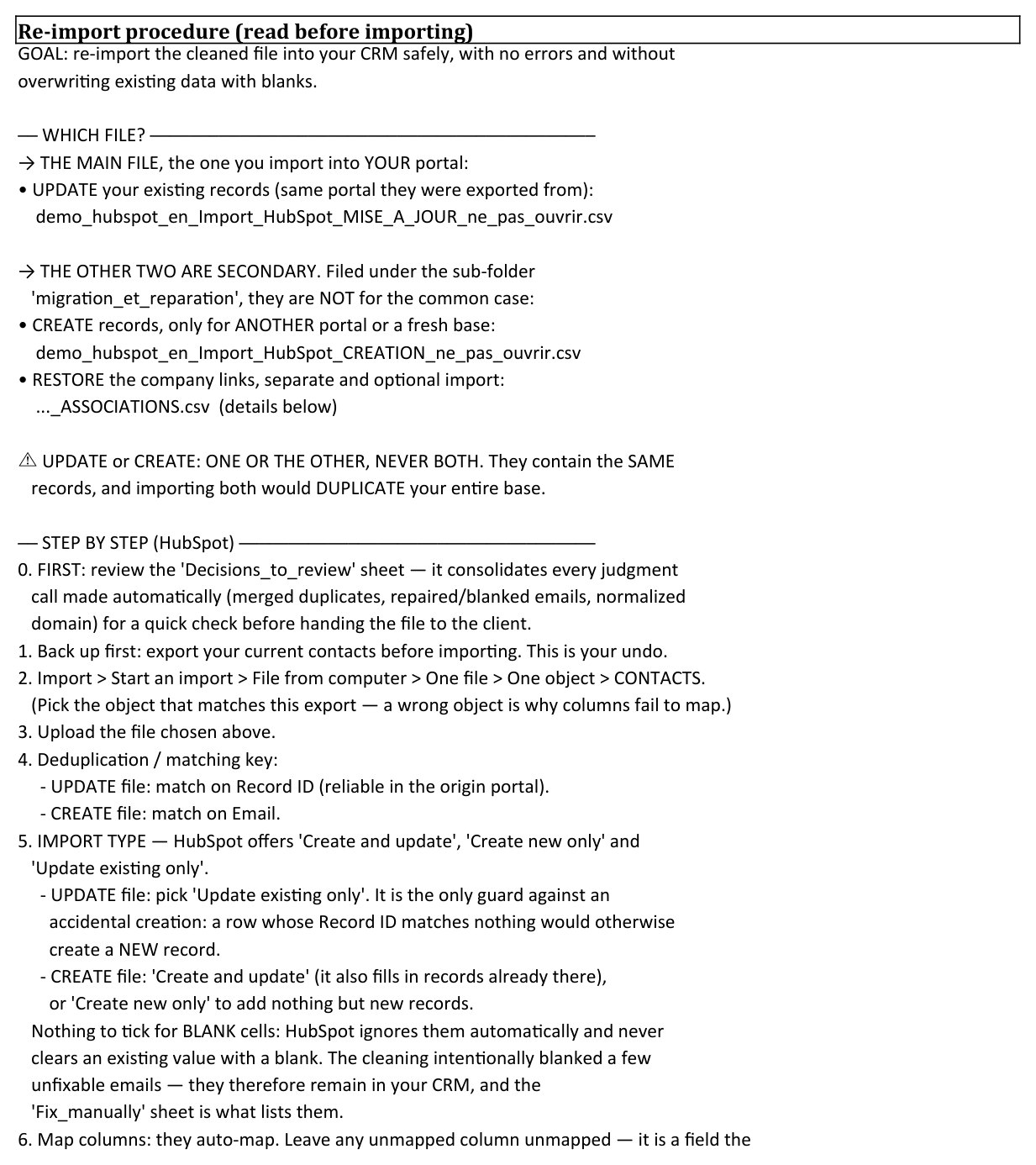
HubSpot imports with two logics: create new records (file with no Record ID) or update existing records (file with Record ID). Importing a create file when the contacts already exist is the number one cause of massive duplicates in HubSpot. Simple rule: to re-clean an existing base, always use update mode with Record ID; create mode is reserved for genuinely new contacts. And never import both files in a row on the same population.
The checklist before any large import
- Back up: run a full export of the base before the import (it is your only "undo").
- Pause the workflows that trigger on the properties the import will change (lifecycle stage, lead status), then re-enable them afterwards.
- Test on a small batch: import 10 rows, check the result record by record, then run the full file.
- Check the mapping column by column on the import screen, without trusting the automatic mapping.
- Verify after import: number of records created or updated announced versus expected, plus a random sample of a few records.
The real problem is often upstream
An import that fails is rarely an import problem: it is a dirty file (my complete cleaning method covers this in depth). Invalid emails, unnormalised phones, inconsistent list values, duplicates, all of this already existed in the base before the export. Fixing errors one by one at every import is bailing water without plugging the leak.
A full audit tackles the problem at the source: it validates every field against the real definitions of your portal (including your custom list options), normalises the formats, and produces compliant reimport files, with a report that separates what has been checked automatically from what is left to check by eye (owners, teams, pipelines: these dynamic lists cannot be validated offline).
Sources
Every page below has been opened and read. These are primary sources: the authority that sets the rule, or the software vendor.
- Create and edit propertiesHubSpot Knowledge Base. Property types and setup, where most rejections originate.
- Export your recordsHubSpot Knowledge Base. Start again from a clean export rather than a rebuilt file.
Your imports keep breaking?
Send your export: within 24h you receive CSV files in the exact formats HubSpot expects, E.164 phones, proposed email fixes, reimport instructions included. Analysed offline, with no connection to your portal.
Get my free mini-audit