The export is the doorway to any serious operation on your base: backup before changes, quality audit, migration, analysis in Excel. Good news: HubSpot makes it simple. Less good news: a badly configured export (wrong columns, wrong format) makes everything you do next unusable. Here is the clean method.
The basic procedure
- In HubSpot, open CRM, then Contacts.
- Choose the view to export: "All contacts", or a filtered view if you only want a segment.
- Click the view options (depending on version: "Table actions" menu or a dedicated icon) then Export.
- Choose the format (CSV or XLSX) and above all the properties to include: this is where it all plays out, see below.
- Confirm: HubSpot generates the file and emails you a download link (a few minutes for large bases).
The essential columns by objective
"Export with the view properties" is usually not enough: the default view only shows 4 or 5 columns. For a usable export, include:
| Objective | Properties to include |
|---|---|
| Full backup | All properties (option available at export) |
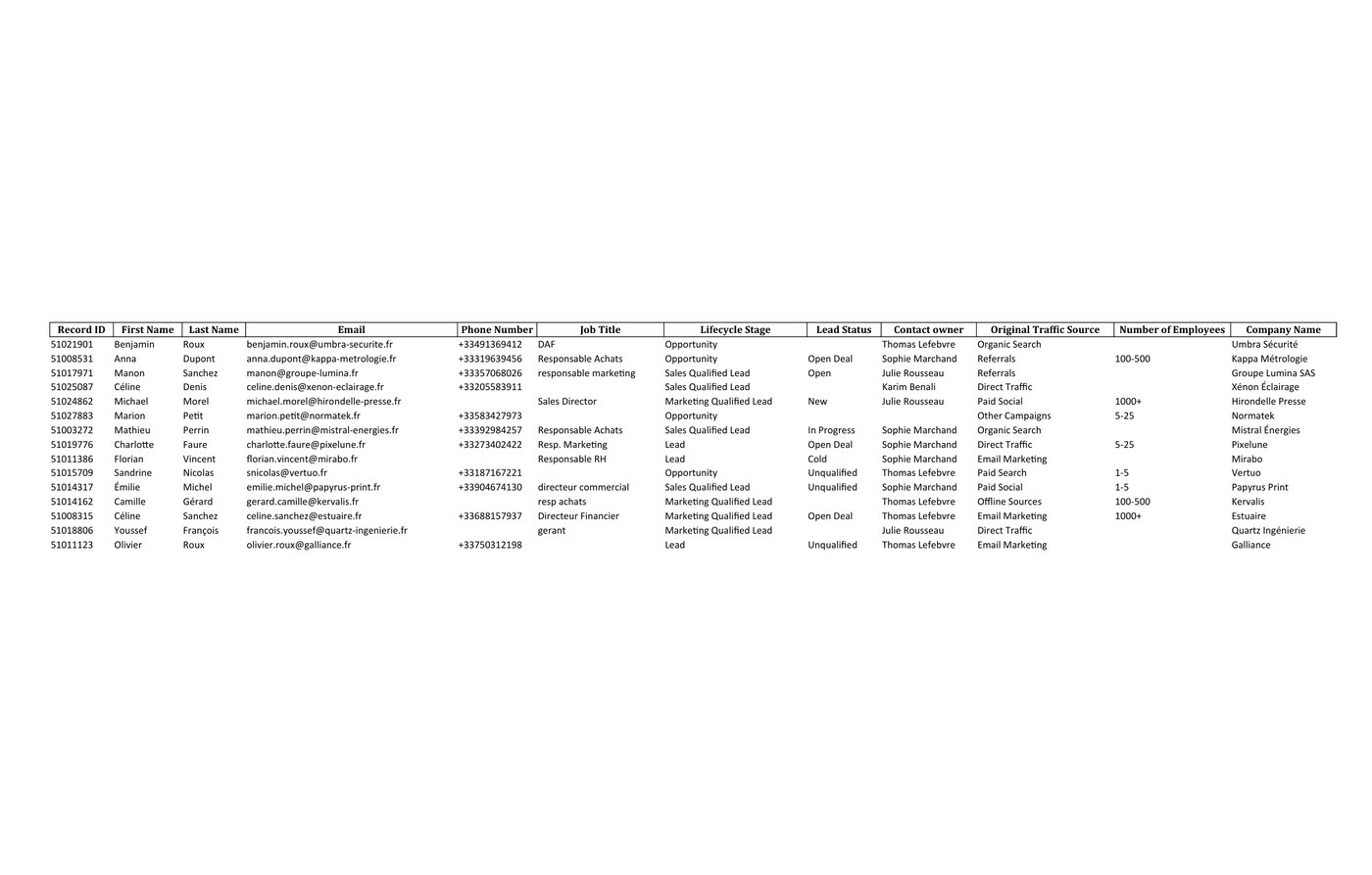
| Base quality audit | Record ID, first name, last name, email, phone, company, job title, lifecycle stage, lead status, owner, source, create date, last activity date, country/city |
| Email campaign | Email, first name, last name, company, marketing status, last activity date |
| Deduplication | Record ID, first name, last name, email, company, owner, create and last activity dates |
The Record ID deserves a special mention: it is the unique identifier of each record, essential if you plan to reimport fixes in "update" mode. Without it, your reimport will create duplicates instead of fixing the records (see my import errors guide).
The three classic pitfalls
1. Opening the CSV in Excel
Excel "helps" by reformatting: phones lose their leading 0 or turn to scientific notation, dates flip between formats, accents get corrupted depending on encoding. If you need to view the file, open a copy, never the original meant to be reworked or reimported.
2. Exporting a filtered view thinking you export everything
If your active view contains a filter (even a discreet one), the export will only contain the filtered segment. Check the number of rows in the export against the contact counter shown in HubSpot.
3. Confusing contacts and marketing contacts
Your HubSpot billing is based on marketing contacts. A full export lets you spot the dead records taking up that quota, which is often the first saving identified in a cost of a dirty base calculation.
And after the export?
An export is only a snapshot. Its value comes from what you do with it: measure field completeness, detect duplicates, identify leads with no owner, check phone and email formats. That is exactly the work of an audit, manual if your base is small (my complete method is here), automated beyond a few hundred records.
Sources
Every page below has been opened and read. These are primary sources: the authority that sets the rule, or the software vendor.
- Export your recordsHubSpot Knowledge Base. The official procedure, including the export permissions required.
- Create and edit propertiesHubSpot Knowledge Base. To identify which properties to include in the file.
What state is your base really in?
The free mini-audit turns your export into a clear diagnosis within 24h: health score, truly prospectable rate, and the exact count of duplicates and orphan leads. Analysed offline, with no connection to your portal.
Get my free mini-audit